
Respondus LockDown Browser
Introduction to LockDown Browser

Harvard University has partnered with Respondus to provide LockDown Browser to course instructors across the University. LockDown Browser is a custom web browser that, when active, prevents students from accessing a wide array of resources, including other websites, external displays, applications, and virtual machines, while taking an exam on Canvas. If, for example, you are interested in allowing students to type an essay response, or want to take advantage of Canvas's autograded multiple choice and numerical response questions, but are worried about students opening messaging applications, AI tools, or search engines during their assessment, the LockDown Browser will likely address your concerns.
LockDown Browser is intended for in-class exams only, not for remote assessment.
For technical support, you can submit a request with Respondus directly. Respondus also provides a host of support resources, including tutorials for instructors and students, training webinars, and information about system requirements.
Students must use Harvard University's specific download page for LockDown Browser.
Contact atg@fas.harvard.edu with questions about setup, or for a consultation.
Expand the accordion items below to review more specific information about using LockDown Browser.
| Capabilities | Limitations |
|---|---|
- Disabled computer functions include keyboard shortcuts, external displays, access to other applications, and virtual machines. - Access to specific web domains, as well as access to a calculator, can be enabled for specific exams. - Integration with Canvas allows for easy set-up, allowing instructors to choose which quizzes will use LockDown Browser and what specific settings to enable for each. | - LockDown Browser does not provide exam proctoring through student screen and camera recordings. - Exams administered through LockDown Browser must use Canvas's New Quizzes engine to ensure students can authenticate properly through HarvardKey. - No keyboard shortcuts, such as copy and paste, can be enabled during the exam. |
Due to how LockDown Browser interacts with Okta Verify, students will have the easiest time logging in and taking their exam on the browser if it is created through Canvas's New Quizzes interface. Canvas's older Classic Quizzes builder can be easily upgraded to include New Quizzes - contact atg@fas.harvard.edu if you are not familiar with New Quizzes. The below instructions can be supplemented with Instructure's own guide to creating a New Quiz.
- Contact atg@fas.harvard.edu to activate New Quizzes for your Canvas site.
Go to the "Quizzes" section of the site, and click "+ Quiz/Survey" in the top right.

Choose "New Quizzes/Surveys", and then click "Submit".

- You will be taken to the edit page for your new quiz. You can name the quiz, decide how many points it is worth, and set different due dates here.
- Once you are ready to add questions to the quiz, click the dark blue "Build" button in the bottom right.
To add a new question, click the "+" button, and then select a question type.

- Fill in the Question Stem (instructions), and answer fields if necessary, then click the dark blue "Done" button to save your question. Repeat steps 6 and 7 for every questions you'd like to add to the quiz.
You can click on the "Settings" tab to enable functions such as a question shuffler and a time limit.

- When you are finished, click the "Return" button in the top right to go back to the main Quiz editing page. From here, you can click "Save" in the bottom right to save the quiz.
- When you are ready to release the quiz to students, make sure to "Publish" the quiz so that it becomes visible to students.


- Click on the "LockDown Browser" item in your Canvas site menu. If you do not see this item, contact atg@fas.harvard.edu.
Find the quiz you are interested in from the list of quizzes. Then, click the dropdown arrow next to its name, and click "Settings".

- Choose the option to "Require LockDown Browser". You can enable additional settings, such as enabling a calculator or allowing students to visit sites besides Canvas during their quiz, by clicking "Advanced Settings". When you are done, click "Save + Close".

We highly recommend keeping the "Lock students into the browser until exam is completed" setting OFF. This will ensure that, if students report accidentally closing LockDown Browser, they will be able to re-access their exam attempt when they open the exam again. If you are worried that students may be closing LockDown Browser to access outside help during the exam, you can view a log of "early exits" after the exam is completed. See the section "Reviewing LockDown Browser Quizzes".
- Ensure that every student has access to Harvard University's unique LockDown Browser link. This link is NOT the same as the general LockDown Browser download link, which some students may encounter if they use a search engine. We recommend posting this link somewhere highly visible to your class, such as the homepage of your Canvas site.
- Schedule time for a practice exam to ensure that all students can try opening LockDown Browser to access an exam on Canvas.
- On exam day, please remind students to close all applications on their computer before opening their quiz link. Although LockDown Browser closes the vast majority of applications on student computers, some applications may be left running in the background such that students are unable to access them during their quiz time. However, such hidden applications may cause slowdown in LockDown Browser. See the "Common Student Concerns" section.
- Exams are up to 3 hours long, during which LockDown Browser will render students unable to see how much battery percentage is left on their computer. Remind students to charge their laptops fully before the exam. If your exam room may not have enough outlets to ensure that students can charge their computers during their Quiz, you can submit a PRESTO work request with the FAS Office of Physical Resources and Planning for extension cords.
If you have students who have a testing accommodation, go to the build page for your quiz, and then go to the "Moderate" page. Click the pencil icon in the row corresponding to that student.

You can grant various accommodations, including time extensions, reduced answer choices, and extra attempts. Make sure to click "Apply" after you select the accommodations. These accommodations must be granted before the quiz starts. For example, attempting to give a student extra time after their attempt has already started will not work.
The "Reduced answer choices" slider button will, when activated, reduce the number of choices in multiple choice questions for this student. Under "Time adjustments", you can grant a student extra time, or remove the time limit entirely. Under "Attempts", you can give a student extra attempts at this quiz.


Accommodations
See the "Preparing for the Quiz" section - accommodations including extra time, extra attempts, and reduced answer choices can be implemented in your quiz's "Moderate" interface.
Power Supply
Some students may be concerned about their computers dying during their exam. See the "Preparing for the Quiz" section - you can contact the Office of Physical Resources and Planning if you need to order extension cords for your exam room.
Slow Startup
LockDown Browser often takes up to two minutes to open the quiz.
Typing Lag
Upon first starting their quiz, students may notice that there is a delay between their keypresses and text appearing in short answer and essay question boxes. This is normal for up to the first minute or two of exam time, but normally goes away after a brief wait. Combined with the relatively slow startup speed of LockDown Browser, students may be anxious about losing valuable exam time. We suggest setting your quiz time limit to have a buffer to account for these concerns. For example, set the time limit to 1 hour and 40 minutes for a 1 hour and 30 minute exam - the extra 10 minutes will assuage student concerns about the startup time or initial typing lag.
If this issue persists, it is most likely due to an application that the student forgot to close running in the background. Advise students to close LockDown Browser, ensure that nothing else is running on their computer, and then enter their quiz again.
Review Early Exits
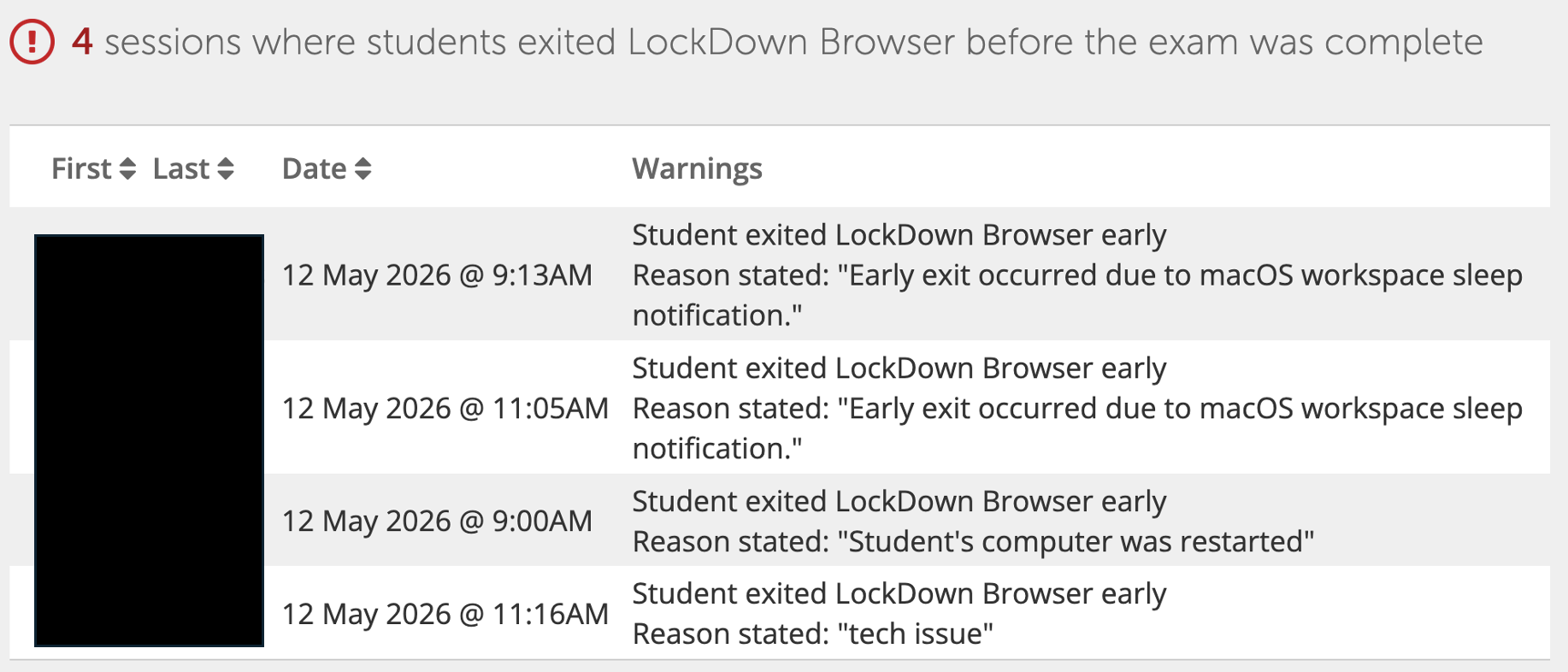
You can view a log of early exits for your quiz by going back to the "LockDown Browser" item in your Canvas menu, clicking the dropdown arrow next to the relevant quiz, and clicking "Review Early Exits".

This log will include the reason, either automatically given or student written, for the early exit.
Reviewing Student Progress
If you simply need to grade your students' exams after they have finished, you should use the Speedgrader on the main quiz page. If, however, you would like to see a detailed review of a single student's progress through their exam, follow the steps below.
On the "Build" page for your quiz, click on the "Moderate" item in the header menu.

You will see a list of students in your course, followed by some information about their quiz attempts. Click on the "View Log" item for the student you're interested in under the "Log" menu.

The moderation page for a New Quiz. You can search for students by name or ID. Results are presented in a table. The first column contains student names and profile pictures - these have been hidden in this example. The second column contains a clickable link for student attempts - these contain the student's completed work for each attempt at the quiz. The third column contains their score, if their work has been graded. The fourth column records how long the student spent taking the exam. The fifth column allows you to view a log of student work, which will record the exact times when students completed or worked on specific questions. The sixth column contains any relevant accommodation information for the student. At the end of each row is a pencil button, which can allow you to give a student more time before they start their exam: see "Common Student Concerns" section. The log contains timestamped actions recorded every few seconds while a student is working on their exam. You can click on each item to view more details: for example, you can see how much progress a student had made on an essay question at a specific time.

This student's exam log begins with items recorded during the first minute of work. Question 1 on this quiz was an essay question - the item at 51 seconds shows us that the student accessed the quiz through Chrome (the browser they opened the original quiz link in) and is using a computer with an OS X 10.15 operating system. At this time, they had almost finished writing the first sentence of their essay.
